
You can use a WMI Fetcher to collect information from Windows devices using the WMI service.
Go to Configure >> Built-in Collectors/Fetchers >> WMI Fetchers.
Select the LogPoint instances where you want to configure the WMI Fetcher.
Click Next.
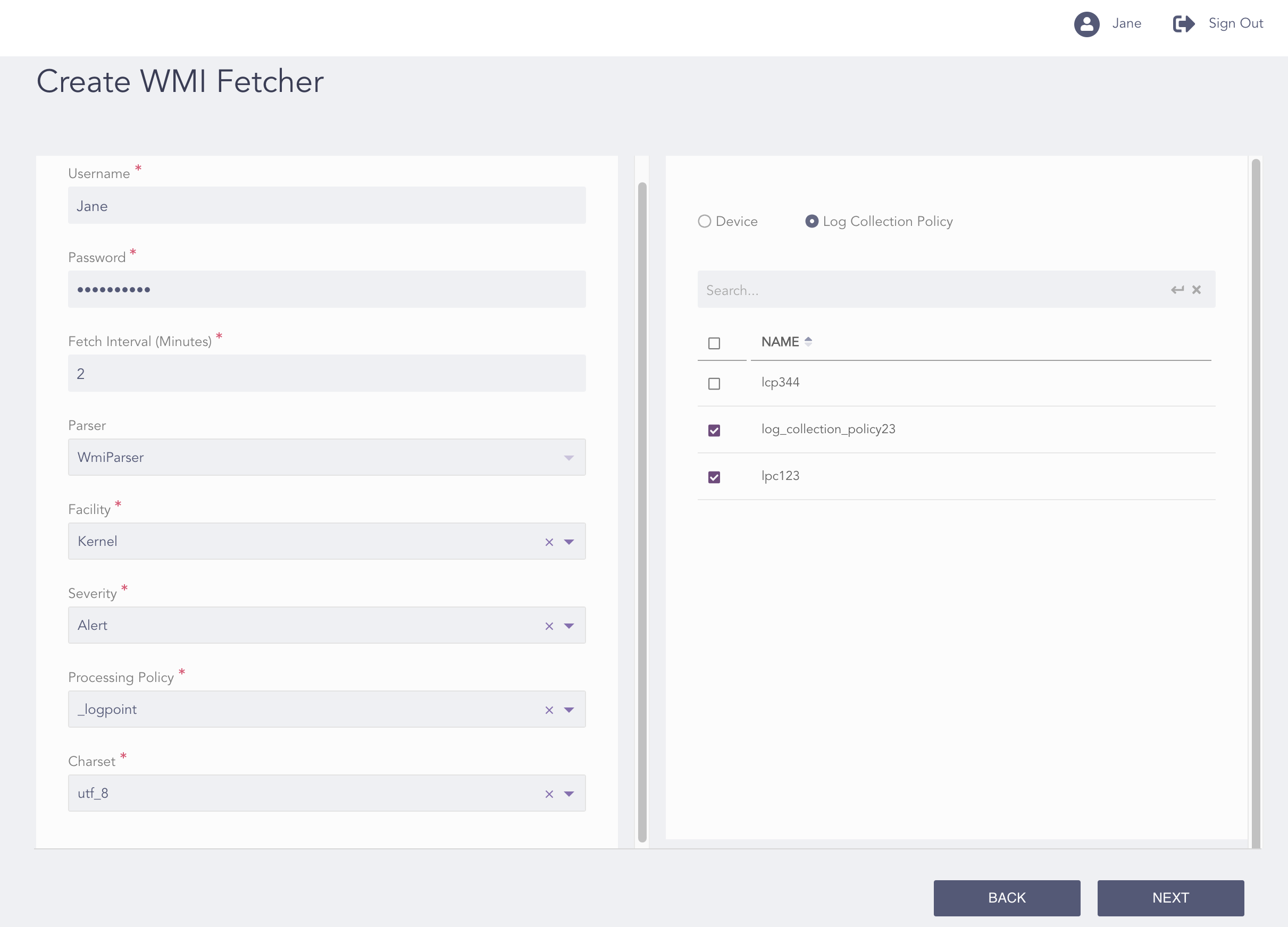
Configuring the WMI Fetcher
Enter the Username and Password of the Windows devices configured for the WMI service.
Warning
If the Windows user is in a domain, make sure that the username you provide is in the format domain/username. domain@username is invalid.
Select the Fetch Interval in minutes. Each log fetched by the WMI Fetcher is parsed for further implementation. WmiParser is applied to the logs by default.
Select a Facility and a Severity.
Select a Processing Policy.
Select an encoding format from the Charset drop-down.
You can either configure the WMI fetcher to a device or a log collection policy.
If you select Device, select all the devices where you want to configure the fetcher.
Note
For multiple LogPoint instances, you can select the devices common to the selected LogPoint instances only.
If you select Log Collection Policy, select all the log collection policies where you want to configure the fetcher.
Click Next.
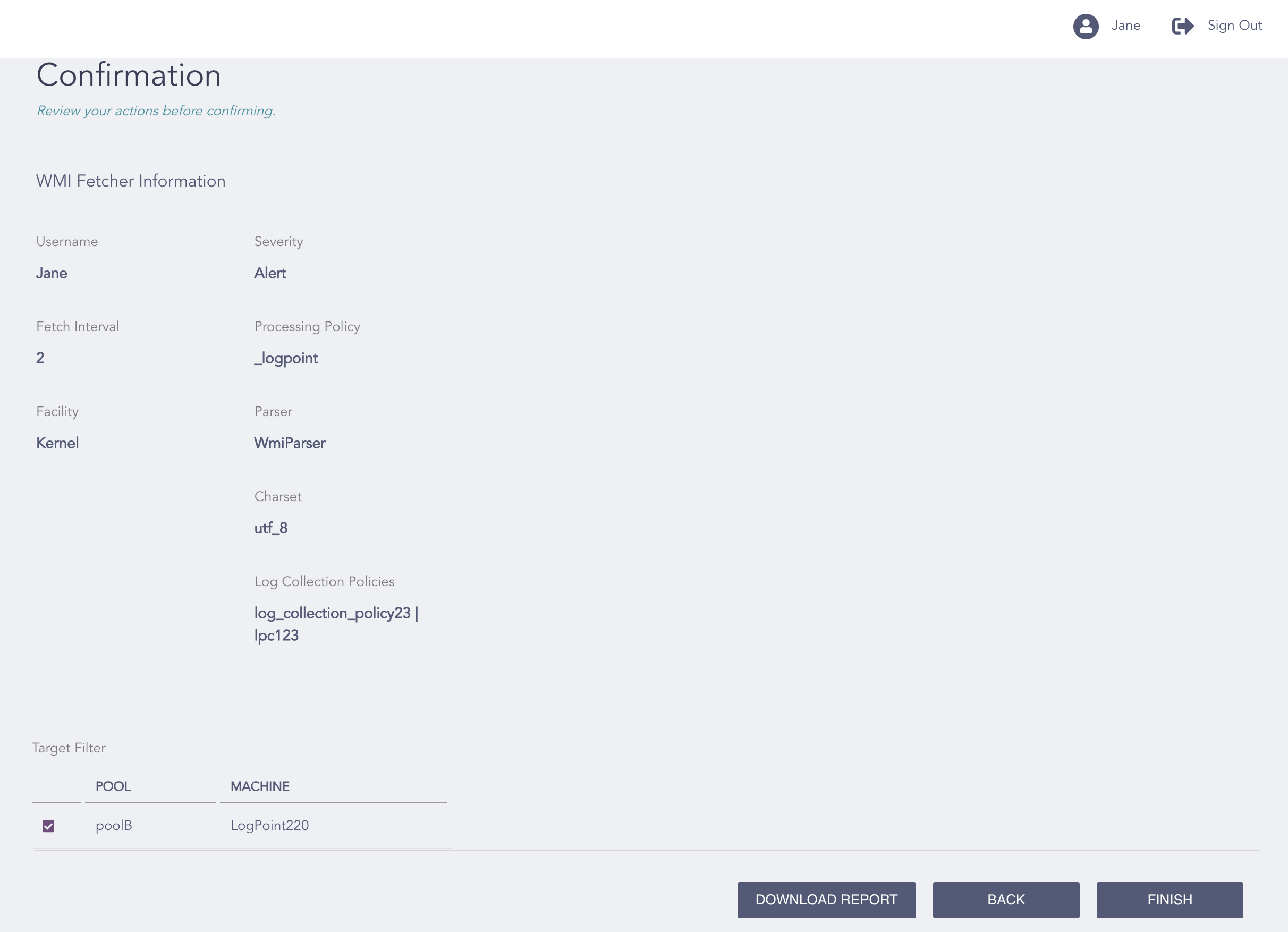
Confirming the Changes
Review your changes. You can go Back to make any changes if necessary.
Note
Click Download Report to save the summary of the task in PDF.
Click Finish.
Click OK.